
Oracle Cloud Free Tier Account Setup (2026 Limits)

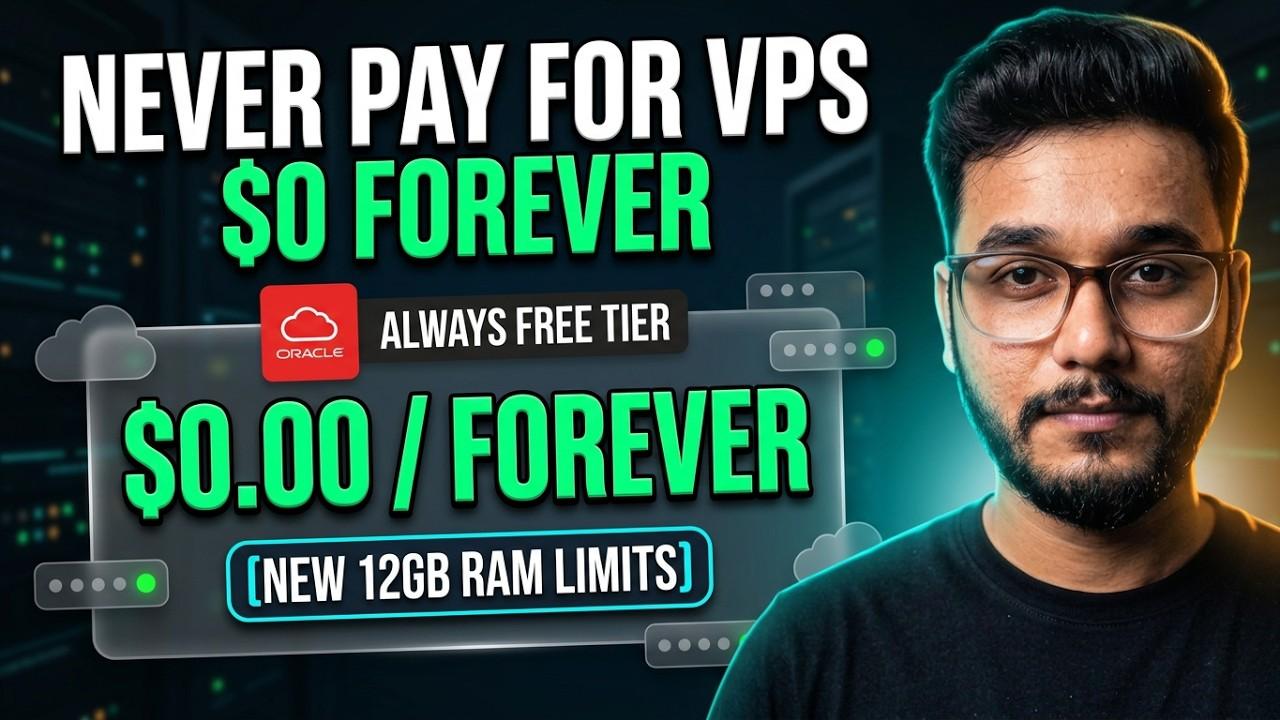
Oracle's free tier got smaller in June 2026: the old 4 OCPU / 24 GB RAM allowance is now 2 OCPU / 12 GB RAM. This video shows the full free trial signup: email verification, payment check, first login with the emailed credentials, and the mandatory authenticator setup.
// contents
New here? A new build-along tutorial lands on the channel every week.
Subscribe on YouTubeOracle Cloud's free trial is still one of the cheapest ways to get a real VPS, but the numbers in older tutorials are wrong now. In June 2026 the free allowance dropped from 4 OCPU / 24 GB RAM to 2 OCPU / 12 GB RAM. This post covers the signup exactly as I did it: email verification, payment check, region selection, first login, and the 2FA step Oracle will not let you skip.
The 2026 limit change
Earlier, Oracle gave 4 OCPU and 24 GB RAM on the free tier. On 15 June 2026 that changed to 2 OCPU and 12 GB RAM. So if you are following a guide from last year and wondering why you cannot get the 24 GB box, this is the reason. The signup flow itself is the same.
12 GB is still enough for a small VPS, a Node app, or a database you are learning on. It is not the 24 GB machine the old videos promised, so size your project for 2 OCPU / 12 GB and you will not be surprised later.
Start the signup
Open Chrome and search for Oracle Free Trial. Click the first result from www.oracle.com, then hit Start for free.
On the form, select your country, enter your first and last name, and add your email. Complete the human verification and submit. On the next screen, click Verify my email, open the mail, and click the verification link. That link brings you back into the signup flow with your email verified.
Password, account name, and region
Now set a password. Oracle then asks for the customer type. Since this is a personal account, choose the individual option.
Next is the account name. I used HostExplains in the video. Any name works, but this is the cloud account name you will see later, so pick something you recognise.
Then it asks for your home region. I selected Mumbai. Pick the region closest to you, because your free resources are created there. After that, add your address and continue.
Payment verification
Oracle asks for a payment method to verify you are a real person. You can use a card, but in the video I suggest an e-wallet or virtual card instead of putting your main bank card directly. Same verification, less exposure.
Fill in the billing details, click Finish, and wait for the thank-you message. Once that appears, you can close the payment step.
Launch the free trial
Back on the agreement screen, accept it and click Start my free trial. You will see a processing state, and it is not instant. I paused the recording at this point and came back when the account was ready.
Do not keep clicking around while it processes. Give it a few minutes, then move to the login screen when the setup finishes.
First login with the emailed credentials
When the account is ready, you land on a screen telling you to check your email. That email contains the cloud account name, username, and password.
Paste the cloud account name on the first screen and click Next. Then enter the username, which is usually your email, followed by the password from the email. Keep that mail until you have saved the credentials somewhere safe.
Set up 2FA
Right after login, Oracle asks you to turn on 2FA. In the video there was no real option to skip it, so do it now and get it over with.
Oracle suggests the Oracle Mobile Authenticator app. You can download it, but any authenticator works. I already had one from the Play Store, so I used that: open the app, scan the QR code on the screen, and enter the current OTP. Once it verifies, click Done.
After the trial ends
That is it, the free trial account is active. The banner tells you that after the trial your account is limited to Always Free resources, so the account stays but the allowance shrinks.
Dark mode is available in the console, and I switched it on because I always do. The next video in the playlist is where we create a VPS on this account and deploy something on it. This one stops at account setup on purpose, so you have a clean working account before we touch servers.
Next in this series: Create a free Oracle Cloud server. If you would rather stay on AWS, the $200 AWS credits walkthrough covers the current sign-up flow.
- Oracle changed the free allowance to 2 OCPU / 12 GB in June 2026.
- Signup needs email verification, a payment method check, and a home region.
- Use an e-wallet or virtual card instead of your main bank card for verification.
- 2FA enrollment is required right after first login.
- After the trial, the account drops to Always Free resources.
Is a credit card required to create an Oracle free trial account?
Can I skip 2FA during first login?
What happens when the Oracle free trial ends?
What are the new Oracle free tier limits?
Which home region should I choose?
New posts in your inbox
Subscribe to get every tutorial.